
JavaScript View Toggle Pattern
Sometimes the same information becomes more useful when users can switch between different ways of viewing it. Instead of reloading a page or fetching new data, JavaScript can toggle between multiple views of the same content.
In this example, the same set of courses is organized in two different ways: by school and by topic.
Oregon State University
- Deductive Logic
- Native American Philosophies
University of Oregon
- Continental Philosophy
- Advanced Logic
Lane Community College
- Web Development
- Intermediary JavaScript
- Introduction to Design
How the JavaScript View Pattern Works
The example above works by organizing the same content into two separate HTML containers. Each container represents a different way of presenting the same information.
In this example, one container groups courses by school, while the other groups them by topic.
<div id="schoolView">
  ... courses grouped by school ...
</div>

<div id="topicView" class="hidden">
  ... courses grouped by topic ...
</div>
Only one of these containers is visible at a time. The hidden
class (defined in CSS) uses display: none to hide the inactive
view.
.hidden {
  display: none;
}
JavaScript then listens for button clicks and toggles which container is visible.
const viewBySchoolBtn = document.getElementById("viewBySchool");
const viewByTopicBtn = document.getElementById("viewByTopic");

const schoolView = document.getElementById("schoolView");
const topicView = document.getElementById("topicView");

viewBySchoolBtn.addEventListener("click", () => {

  schoolView.classList.remove("hidden");
  topicView.classList.add("hidden");

});

viewByTopicBtn.addEventListener("click", () => {

  topicView.classList.remove("hidden");
  schoolView.classList.add("hidden");

});
Because the content is already present in the page, JavaScript does not need to reload anything or request new data. It simply changes which section is visible.
This pattern appears frequently in dashboards, portfolio pages, and web applications where users switch between different views of the same information (for example list view vs grid view, or grouping data by different categories).
Real Example From This Site
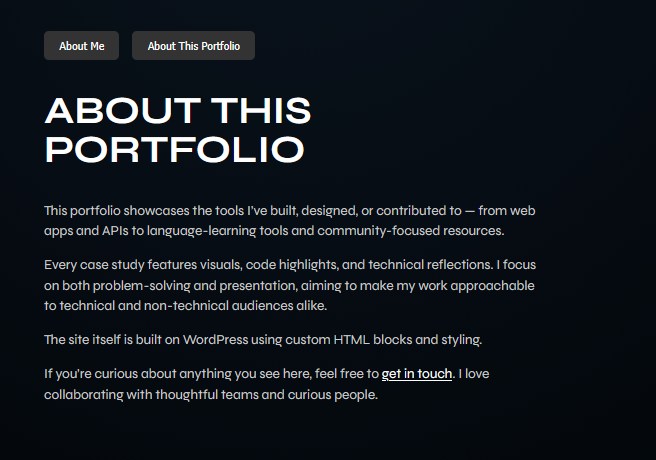
This toggle pattern appears in several places across this portfolio site. One example is the About page, where visitors can switch between two sections: About Me and About This Portfolio.
Instead of loading a new page, JavaScript simply changes which section is active.
Example Screens
About This Portfolio view:

About Me view:
The Toggle Code Used
The HTML contains a simple button group that calls a JavaScript function to switch the visible section.
<div class="about-toggle">
  <button onclick="showAboutSection('about-me')">About Me</button>
  <button onclick="showAboutSection('about-portfolio')">About This Portfolio</button>
</div>
Each section on the page is assigned the class about-section.
Only one section at a time receives the active class.
function showAboutSection(id) {

  document.querySelectorAll('.about-section')
    .forEach(el => el.classList.remove('active'));

  document.getElementById(id)
    .classList.add('active');

}
CSS then determines which section is visible. The active section is displayed, while the others remain hidden.
CSS That Powers the Toggle
JavaScript only switches which section is marked as active.
The actual visibility behavior is controlled by CSS.
Each section starts hidden using display: none. When the
active class is applied, the section becomes visible.
This approach keeps the interaction lightweight. The content is already present in the page, so JavaScript only changes the display state rather than requesting new data or reloading the page.
.about-section {
  display: none;
}

.about-section.active {
  display: block;
}
Additional styling controls the layout and appearance of the toggle and content blocks.
.about-toggle {
  margin-bottom: 1rem;
  display: flex;
  gap: 1rem;
}

.about-toggle button {
  padding: 0.6rem 1.2rem;
  background-color: #333;
  color: #fff;
  border: none;
  border-radius: 6px;
  cursor: pointer;
}

.about-section {
  display: none;
  animation: fadeIn 0.4s ease-in-out;
}

.about-section.active {
  display: block;
}
Together, the three layers create the interaction:
- HTML defines the sections and buttons
- CSS determines which sections are visible
- JavaScript switches the active state
Because the content already exists in the page, this pattern is extremely lightweight. JavaScript simply changes which section is visible rather than requesting new data or reloading the page.